
🤔 What's this WSL?
WSL stands for Windows Subsystem for Linux!
In short, its job is to add the Linux kernel to Windows. This lets us simultaneously use Linux commands and packages right within Windows, without needing to install a virtual machine or set up a dual-boot system!
Before we jump into installing and using WSL, feel free to read the next two sections explaining what Linux is and why you might want to use it (and WSL).
Also, I've written this guide so that even if you barely know more than turning your computer on and off, you can still follow along! It might look complicated from afar, but I've explained everything, and it's really quite simple!
🐧 What's Linux and Why Use It?
Unlike Windows, which is a commercial operating system requiring a purchased license to support the company and its developers (we pay them to make a better OS!), Linux is a completely free and open-source operating system. Developers from all over the world contribute to improving its security and features! Because of this, almost all universities and research centers worldwide use Linux to avoid extra costs!
Within Linux, various Distributions (or "distros") have been developed, each designed for a specific purpose. For example, the Ubuntu distro is great for everyday use by anyone, while the Kali distro is used for hacking and security purposes. Almost all these distros can be installed on WSL, though they might have some limitations.
Whether you're a programmer or not, Linux offers a wide range of free and open-source tools! From simple yet
powerful everyday tools like the grep
and
sed
commands (which let you search inside files and make changes) to specialized tools for bioinformatics and genetic
data analysis like SAMTools (which
only
install on Linux!). And if you
are
a programmer, I don't need to tell you that Windows often lacks many necessary tools! Perhaps the most significant
is Docker, but many other tools just don't work as well on their Windows versions compared to Linux! Especially
in the age of AI and using GPUs, you often can't harness the full power of some hardware with Windows...
Interestingly, even things like the F-35 fighter jet, drones, satellites, communication towers, ATMs, and self-driving cars use customized versions of Linux! In reality, the whole world kind of revolves around Linux, and there isn't a single professional programmer who doesn't interact with Linux commands daily!
So: if you want to speed up some of your tasks, prove your computer skills to employers, learn how to work with Linux servers, be able to use a globally recognized operating system, prepare for potential emigration... or even dive into the world of hacking and security by analyzing internet traffic and nearby Wi-Fi networks! You need to get familiar with the Linux operating system!
And what's better than being able to modify your Windows files using a Linux command line connected directly to Windows, without the hassles and heavy processing load of virtual machines like VMWare?!
❔ Why Use WSL?
Or more precisely: Why use the Linux command line within Windows?!
For these reasons:
- Ease of installation and use
- Saves hardware resources compared to virtual machines
- Access to Windows files and folders
- Pre-installed Python Programming Environment
- Ability to use Linux commands like
sed,grep, andawkon Windows files for searching and editing - Ability to use the powerful
wgetcommand instead of a download manager - Ability to use powerful network analysis commands like
nmapandtraceroute - Ability to use professional computing and programming tools like Docker and NixOS
- Ability to run Linux graphical applications within Windows
🧑💻 Installing WSL
Enabling Virtualization in BIOS
To install WSL, you need to enable the Virtualization option in your computer's BIOS. If you already use
VMware, this is likely already enabled. To check if it's active, just open a PowerShell terminal with
Administrator privileges! (You can do this by pressing Win + R
, typing
powershell
in the box, then pressing
Ctrl + Shift + Enter
and choosing
Yes
).
Type the following code and press Enter:
Get-ComputerInfo -property "HyperV*"If the output looks like this, it's enabled:
HyperVisorPresent: TrueIf it's not enabled, you'll need to search Google for the text below, along with your motherboard model, and follow the instructions. You can also check YouTube or ask an AI:
Step-by-step guide with images to enable BIOS virtualization on ASUS Z890For example, this site has a general guide, and here's the guide for enabling Virtualization on the official ASUS site . Also, the official Microsoft site links to instructions for various motherboards. Since motherboard models vary, I haven't written specific instructions here.
Installing WSL1
The Windows Subsystem for Linux has two versions. Version 2 is newer and better, but it only works on certain Windows versions! We'll install version 1 first and then upgrade it.
To install WSL on Windows, open a PowerShell terminal with Administrator privileges! (Again, like above: Win + R
, type
powershell
, press
Ctrl + Shift + Enter
, choose
Yes
).
Inside the PowerShell window, copy and paste the scripts below one by one, pressing Enter after each to run them (It's a good idea to first check manually which features are already enabled, as described next, so if you ever want to uninstall WSL, you don't accidentally disable something else!).
(The first script enables Windows virtualization capabilities, and the second prepares the Windows Subsystem for Linux for installation):
dism.exe /online /enable-feature /featurename:VirtualMachinePlatform /all /norestartdism.exe /online /enable-feature /featurename:Microsoft-Windows-Subsystem-Linux /all /norestart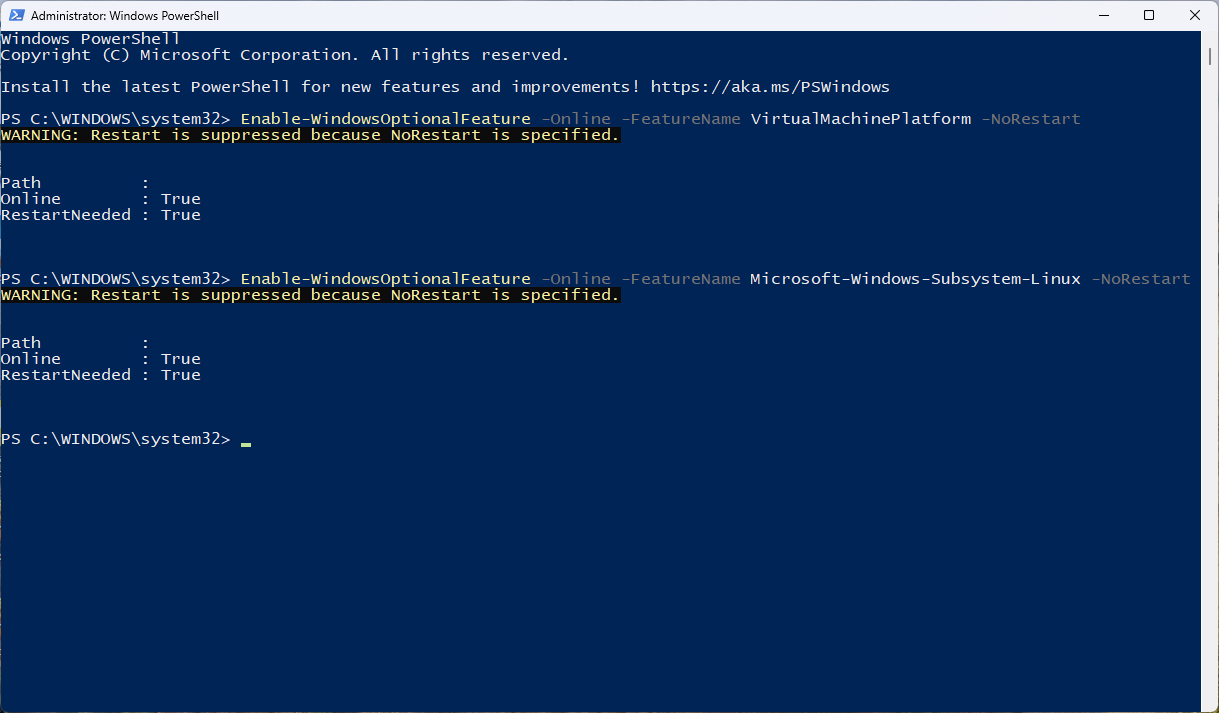
Turn Windows features on or off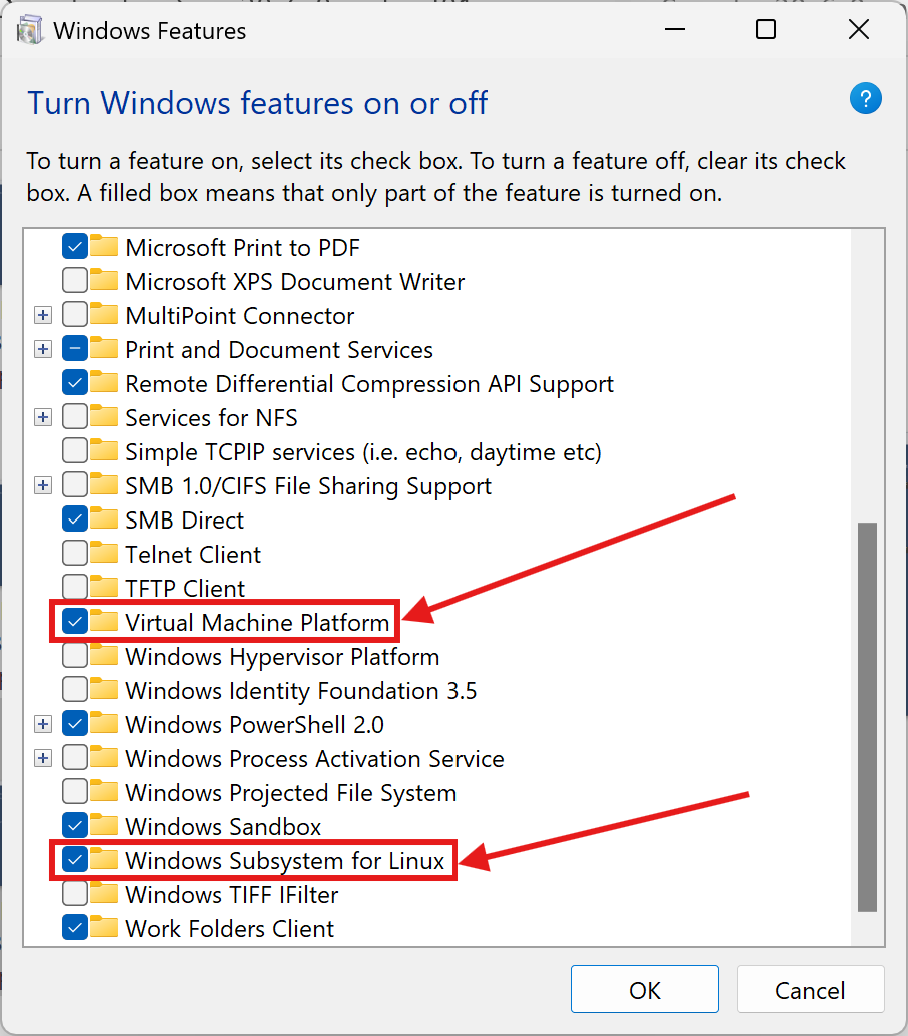
Now, you need to restart your system once for the changes to take effect.
Restart-ComputerWhen the computer restarts, open another PowerShell window with Administrator privileges (using the method described above) and run the command below to install the core WSL components (without downloading the default distribution, which is currently Ubuntu 24.04):
wsl.exe --install --no-distributionNow we need to install a Linux distribution on WSL, but first, it's better to upgrade WSL to version 2!
Upgrading to WSL2
The initial version of WSL we installed has some shortcomings, like not being able to use systemd
, which prevents some programs like Docker from working optimally! The initial steps were necessary even for
installing version 2, though. So, let's upgrade to version 2, which fixes these issues...
First, let's check if your Windows version supports WSL2!
Press Win + R
, type
winver
in the box, and press
Enter
. In the window that opens, check if the Build number is greater than 18362.1049. If it is, or higher, you can
install WSL2! 🎉
If not, your Windows needs updating; check for updates and try again. Even if your system doesn't support WSL2, you can still work with Linux in Windows using WSL1 (which we installed above)! Just keep reading the guide.
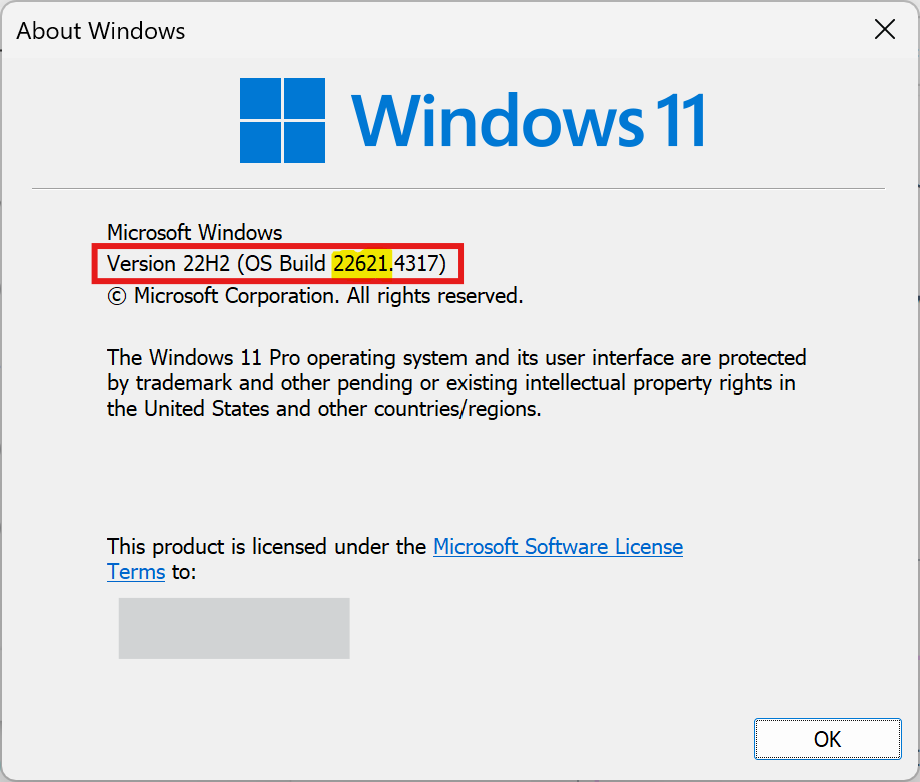
To enable WSL2, simply run the following command in PowerShell with admin privileges:
wsl.exe --set-default-version 2When WSL2 activation is complete, you'll see text similar to this:
For information on key differences with WSL 2 please visit https://aka.ms/wsl2The operation completed successfully.Installing a Distribution
After successfully installing WSL, we can now see a list of different Linux distributions that WSL supports:
wsl.exe --list --onlineHere, we'll install the default version, Ubuntu 24.04, but you can install any distribution and version you like!:
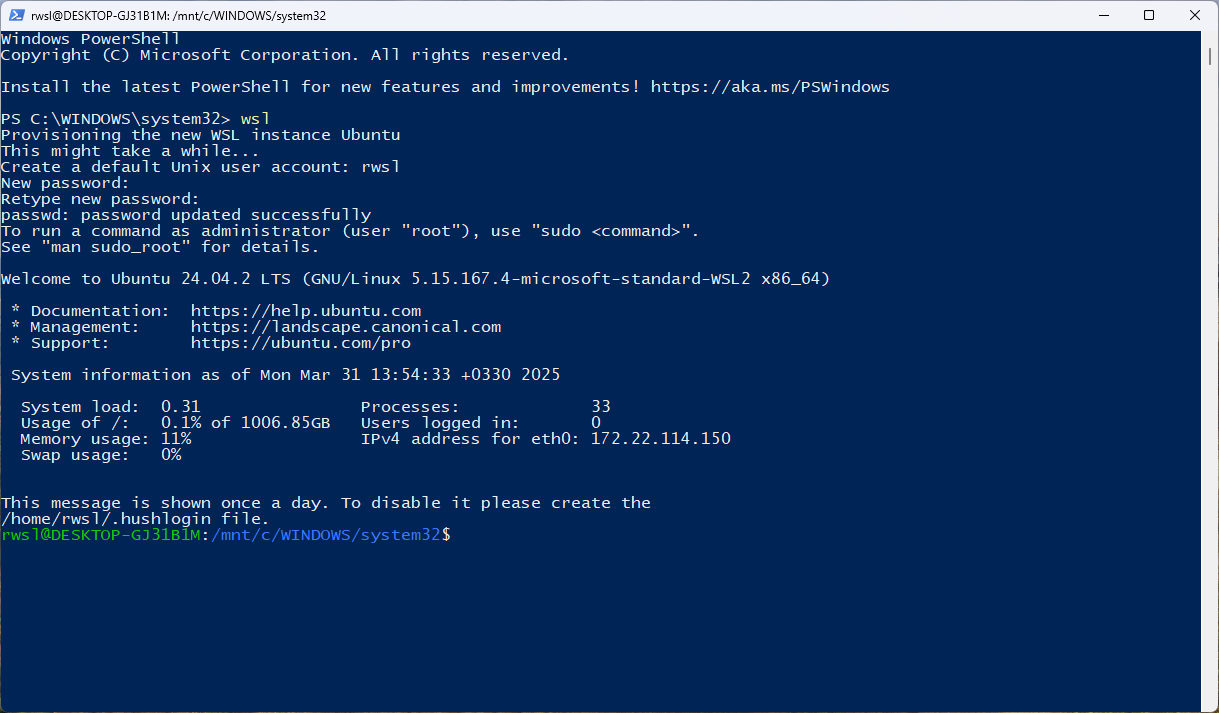
wsl.exe --install -d UbuntuOur chosen distribution is installed successfully! 🎉 Now we need to enter WSL and create an account. By running the command below, you'll first need to choose a username and then a password:
wslThat's it! Congratulations, you've successfully installed WSL! 😃🐧🎉
🌚 A Better Terminal for Windows
The old PowerShell, cmd, and the default Ubuntu terminal environments don't offer much customization; it's better to install the new Windows Terminal! (It's installed by default on Windows 11):
Windows Terminal - Free download and install on Windows | Microsoft Store
🐧🖥️ Getting Started with Linux in Windows
Here, I'll just touch on a few basic examples and interesting things we can do with Linux. Instead of
explaining every command exhaustively, I'll focus on highlighting important Linux concepts rather than diving
deep into command specifics. Don't worry, the commands shown here are safe. You can always copy a command and
ask an AI about it (if you're new and getting into Linux, it's highly recommended to ask about the details
before running commands, especially potentially risky ones like rm
!)...
To see the explanation for any command, you can read its manual! For example, for the touch
command (press
q
to exit):
man touchTo cancel any running command, just press Ctrl + C
.
In Linux, the sudo
command is used to run sensitive system commands, known as
root
commands, similar to Administrator in Windows. Essentially, this command grants access to all parts of the
operating system. When running a command with
sudo
, the system will ask for the password you set when creating your account, and for security reasons, you won't
see anything being typed! To run commands sequentially, use
&&
(runs the second only if the first succeeds) or
;
(runs the second regardless).
WSL's file system is separate from your main Windows paths (like C:
). It actually has its own virtual disk optimized for Linux operations, making it faster and more efficient than
accessing Windows drives from within Linux! This means coding directly inside the WSL environment (e.g., in your
Linux home directory) will generally perform better than coding on files located on your Windows drives (like
/mnt/c/
). (Though for the simple scripts mentioned later, this speed difference likely won't be noticeable)
Upgrade Linux Libraries
It's best practice before installing any library to first check if updates are available for your system and install them if there are; this might take some time depending on your internet speed:
sudo apt update && sudo apt upgrade -yChanging Directory to Different Windows & WSL Locations
By default, WSL has its own path structure within Windows! You can see your accessible Windows drive names within WSL using this script:
ls /mntFor example, to go to the C: drive:
cd /mnt/c/To go to your Windows Desktop within WSL, run the following script; this script uses PowerShell to get your Windows username and passes it to Linux!:
cd /mnt/c/Users/$(powershell.exe '$env:USERNAME' | tr -d '\r')/DesktopOr, if you know your Windows username:
cd /mnt/c/Users/MYUSERNAME/DesktopChange directory to your WSL home directory (the ~
symbol is a shortcut for home):
cd ~Change directory to the system root (indicated by /
). (⚠️ Be careful here! Don't modify files or folders in the root directory if you're unsure what they
are!)
cd /File Operations
To create a file and save something inside it:
echo "Hello WSL! 😃🐧\nHow awesome you are! \nThank you @microsoft & ali! \nAli's channel: @TechNila\n6\n9\n4\n1\n1\n8\n2\n" > MYFILE.txtView the file contents within the terminal:
cat MYFILE.txtCorrect the order of the numbers listed inside the file:
sed -n '/^[0-9]\+$/p' MYFILE.txt | sort -n | sed -i -e '/^[0-9]\+$/d' -e '${' -e 'r /dev/stdin' -e 'd' -e '}' MYFILE.txt && cat MYFILE.txtExtract usernames (starting with @
) from the file:
awk '{for(i=1;i<=NF;i++) if ($i ~ /^@[a-zA-Z0-9_]+/) {gsub(/[^a-zA-Z0-9_]/,"",$i); print $i}}' MYFILE.txtView the file contents in Windows Notepad:
notepad.exe MYFILE.txtSearch for a word in the file and show its line number:
grep -n "you" MYFILE.txtDelete the file (irrecoverable):
rm MYFILE.txtBasic Folder Operations
To create a folder:
mkdir MyFolderOpen the current path in Windows File Explorer:
explorer.exe .Open the created folder in File Explorer:
explorer.exe MyFolderDelete the folder completely:
rm -rf MyFolderTest Internet Speed
By installing the speedtest-cli
library:
sudo apt install speedtest-cli -yAnd running the command below:
speedtest-cli --byteDownload File
With the command below, even if your internet disconnects mid-download, you can be sure the download won't start from scratch! This code is for testing and starts downloading a 2.9 GB Popeye animation episode!:
wget -c --timeout=60 --tries='inf' https://tile.loc.gov/storage-services/service/mbrs/ntscrm/00068306/00068306.movShow Large Files
The script below lists files larger than 100 Megabytes (+100M) in the current directory!:
sudo find "$(pwd)" -type f -size +100M -exec sh -c 'du -h "$1" | sed "s/\t/: /"' _ {} \; 2>/dev/nullView Devices Connected to the Network
By installing the nmap
library, we can see how many devices are using our Wi-Fi and their addresses:
sudo apt install nmap -yAnd searching the network:
nmap -sn 192.168.1.0/24(Note: Replace 192.168.1.0/24
with your actual network range if different, e.g.,
192.168.0.0/24
)
Other Commands for Further Study
Ask an AI about the uses of the following commands and use them if they seem helpful!
tree
|
traceroute
|
du
|
df
|
htop
|
ps
|
tmux
|
bg
|
rsync
|
curl
|
aria2
♻️ Uninstalling WSL
⚠️ Be aware that this action will delete all data stored on WSL! If you only want to temporarily disable it while
keeping your data, just run the two commands that start with dism
.
Open PowerShell with admin privileges! The command below deletes the data of the installed Linux distribution:
wsl --unregister Ubuntu(Replace Ubuntu
if you installed a different distribution)
Next, you need to disable the two features you enabled for WSL and restart the system:
dism.exe /online /disable-feature /featurename:VirtualMachinePlatform /norestartdism.exe /online /disable-feature /featurename:Microsoft-Windows-Subsystem-Linux /norestart(Remember to restart your computer after running these!)
WSL data is usually created in the following path, and the folder name starts with CanonicalGroupLimited.Ubuntu
(paste the path below into your Windows File Explorer address bar). You can delete this folder too:
%LOCALAPPDATA%\Packages\